Client Installation Tutorial for General Users
This article uses the modpack installation method to install the client. It's simple and fast — perfect for general users.
Unless specifically noted as being for a particular launcher, the instructions in this article are based on Plain Craft Launcher 2 (hereinafter referred to as PCL2). If the platform is Android, the instructions are based on Fold Craft Launcher (hereinafter referred to as FCL). A client installation tutorial for iOS is not currently available, but feel free to figure it out on your own :)
As the server's mods become increasingly diverse, mobile devices may not be up to the task of running Minecraft: Java Edition. Therefore, we recommend using a PC to play on the server. If you still want to use a mobile device, please scroll down to the Download and Configure the Launcher (Android Users Only) section.
Install and Configure Minecraft: Java Edition
Download Java
If you are using the Fold Craft Launcher (hereinafter referred to as FCL), you do NOT need to download Java separately. The launcher will automatically download Java for you.
Note: In newer versions of Plain Craft Launcher (hereinafter referred to as PCL), Java may be installed automatically. However, PCL does not automatically install all Java versions, so we recommend installing it manually.
Starting from Minecraft: Java Edition version 1.21, Java 21 or above is required. Therefore, you need to install Java 21 first.
Using Oracle JDK as an example, click here to go to the download page, select JDK 21, and choose the appropriate installer for your operating system to download and install.
How do I check my system type and architecture?
Generally, you can find your OS type and architecture in the built-in
Settings>Aboutoption. For example, if my OS isWindows 11 x64, I would choose thex64 Installerunder theWindowstab.
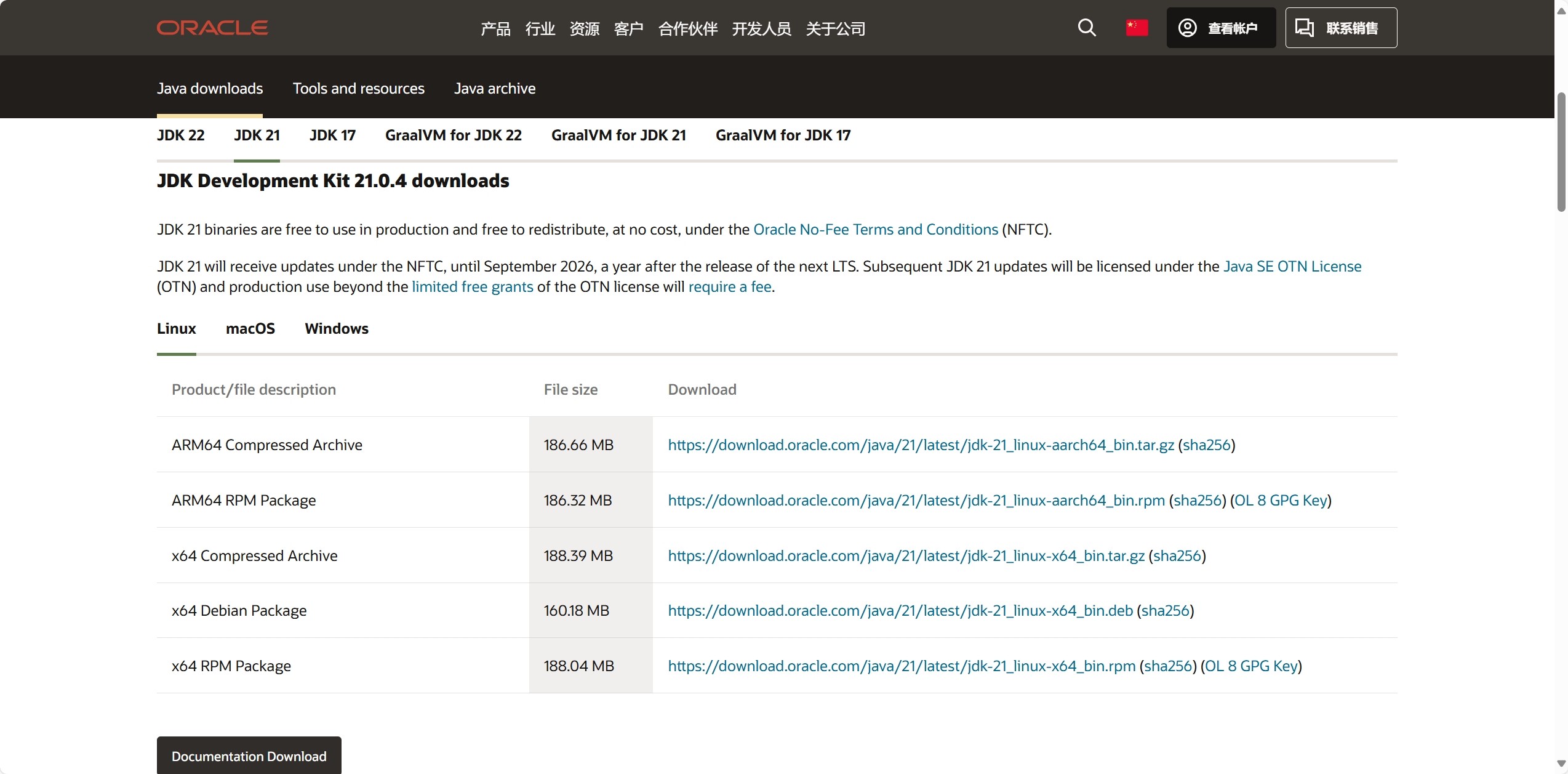
Then, follow the installation wizard step by step.
Why not install the latest JDK 22?
JDK 22 is a short-term release with a short maintenance cycle. Once support ends, it will be replaced by JDK 23. JDK 21, on the other hand, is an LTS release (Long-Term Support), maintained until September 2026 — a year after the next LTS release.
At the time of writing, the latest Oracle Java version is JDK 22. Even if newer versions exist now, I still only recommend installing JDK 21 for the time being.
Of course, you can also choose other Java distributions optimized by different vendors, such as Azul Zulu JDK. However, different vendors' Java distributions vary in focus, performance, and other aspects. Overall, Oracle JDK is the best choice.
Download the Modpack
All you need to do is select and download the appropriate modpack, install it correctly, and you'll be ready to join the server — simple and quick.
| Modpack | Download Link |
|---|---|
| Modpack with PCL Launcher included | Download |
| If you're using FCL Launcher | No link provided here — there's an even easier method, see below |
| Original modpack (no launcher) | Download |
Note: There is currently a vulnerability in the Litematica mod. After installing the modpack, please refer to this article to decide whether to update Litematica: Litematica Vulnerability Update Notice 2026-07-08.
Which modpack should I download?
When you're a PC user (Windows only):
- If you haven't downloaded any launcher, the
Modpack with PCL Launcher includedis the best choice. Just extract the entire modpack to a suitable location, double-click to open PCL Launcher, and it will automatically install the client.
When you're a PC user (any OS):
- If you already have a launcher such as PCL or HMCL, you can choose to download the
Original modpack (no launcher). After downloading, no need to extract — just drag the entire zip file into the launcher window, follow the prompts, and you're done.
When you're on a phone (Android only):
If you haven't downloaded a launcher yet, FCL is recommended. See below for configuration details.
Download and Configure the Launcher (PC Users Only)
-
The official version of PCL2 Launcher can be downloaded from the author 龙腾猫跃's Afdian page — click here to go there.
-
Both the official and beta versions of HMCL Launcher can be downloaded from the HMCL official website — click here to go there.
As mentioned above, installing these launchers is very easy. All you need to do is create a new folder in a suitable location (wherever you want to store game files), put the launcher in it, open the launcher, and then drag in the downloaded modpack. Then follow the launcher's on-screen instructions step by step — we won't go into too much detail here.
Why do I need to create an extra folder?
Launchers typically create additional files (and folders) in their location when they start. If you place the launcher executable directly on your desktop, it could clutter your desktop or lead to accidental file deletion.
So how can I quickly open the launcher from my desktop? You can create a shortcut.
Windows 11 or newer: Select the launcher executable > Right-click > Show more options > Send to > Desktop shortcut.
Windows 10 or older: Select the launcher executable > Right-click > Send to > Desktop shortcut.
We won't list instructions for other systems here — feel free to search how to create shortcuts on your system.
Note: It is NOT recommended to use Chinese characters in the new folder name. Only use English letters, numbers, and underscores
_in any combination.
Download and Configure the Launcher (Android Users Only)
FCL Launcher can be downloaded from the official GitHub Releases page — click here to go there.
After opening the link, you'll see a page like the one shown below (please refer to the actual page).
If you can't open the page or download files, try switching networks or using a VPN/accelerator.
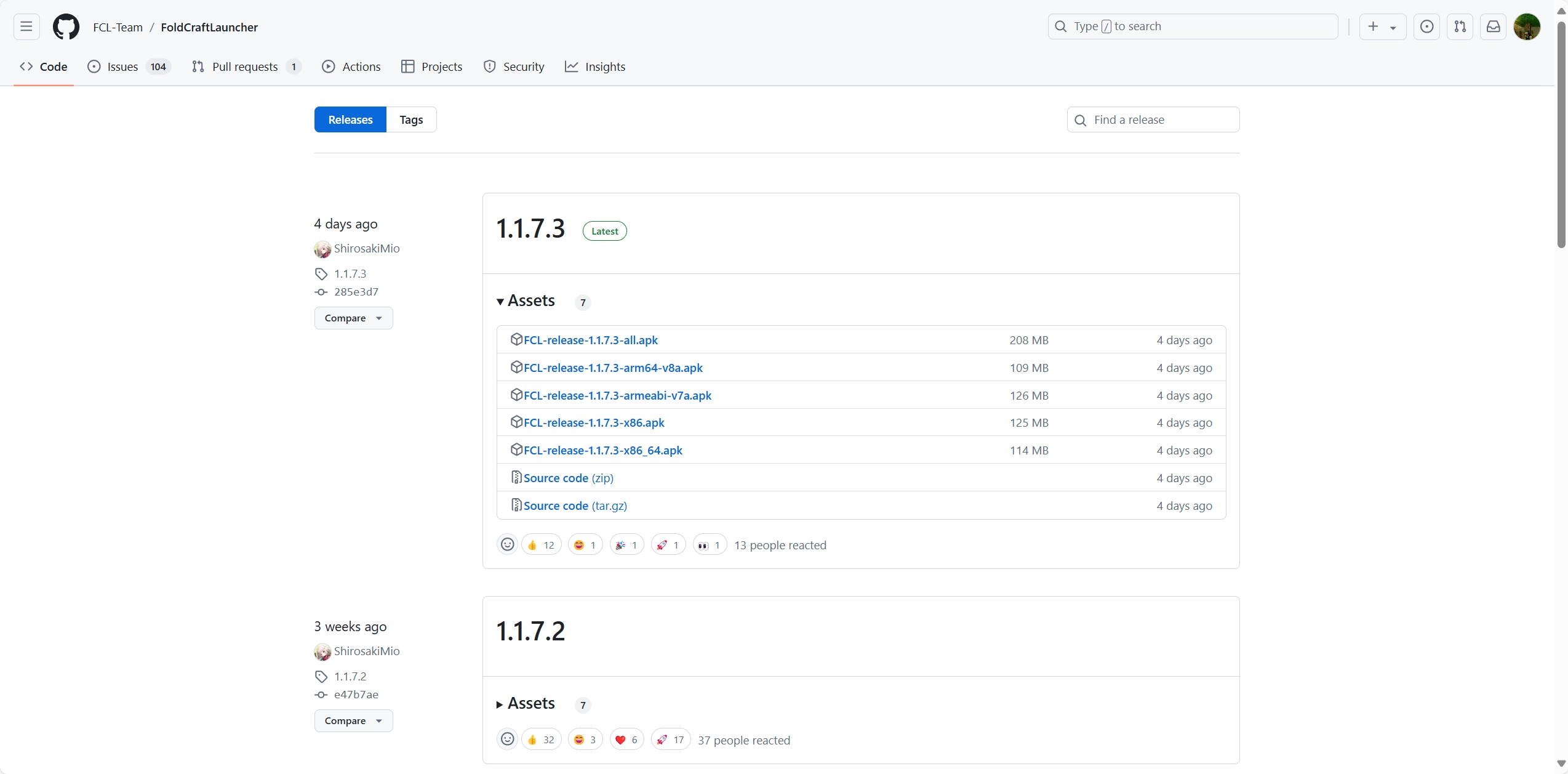
As shown, the version marked with a green Latest badge is the latest version. Click the files under Assets to download.
Note: For the best performance, general users should choose the version with the
arm64-v8asuffix. If you encounter any issues, then download the universal version with theallsuffix.
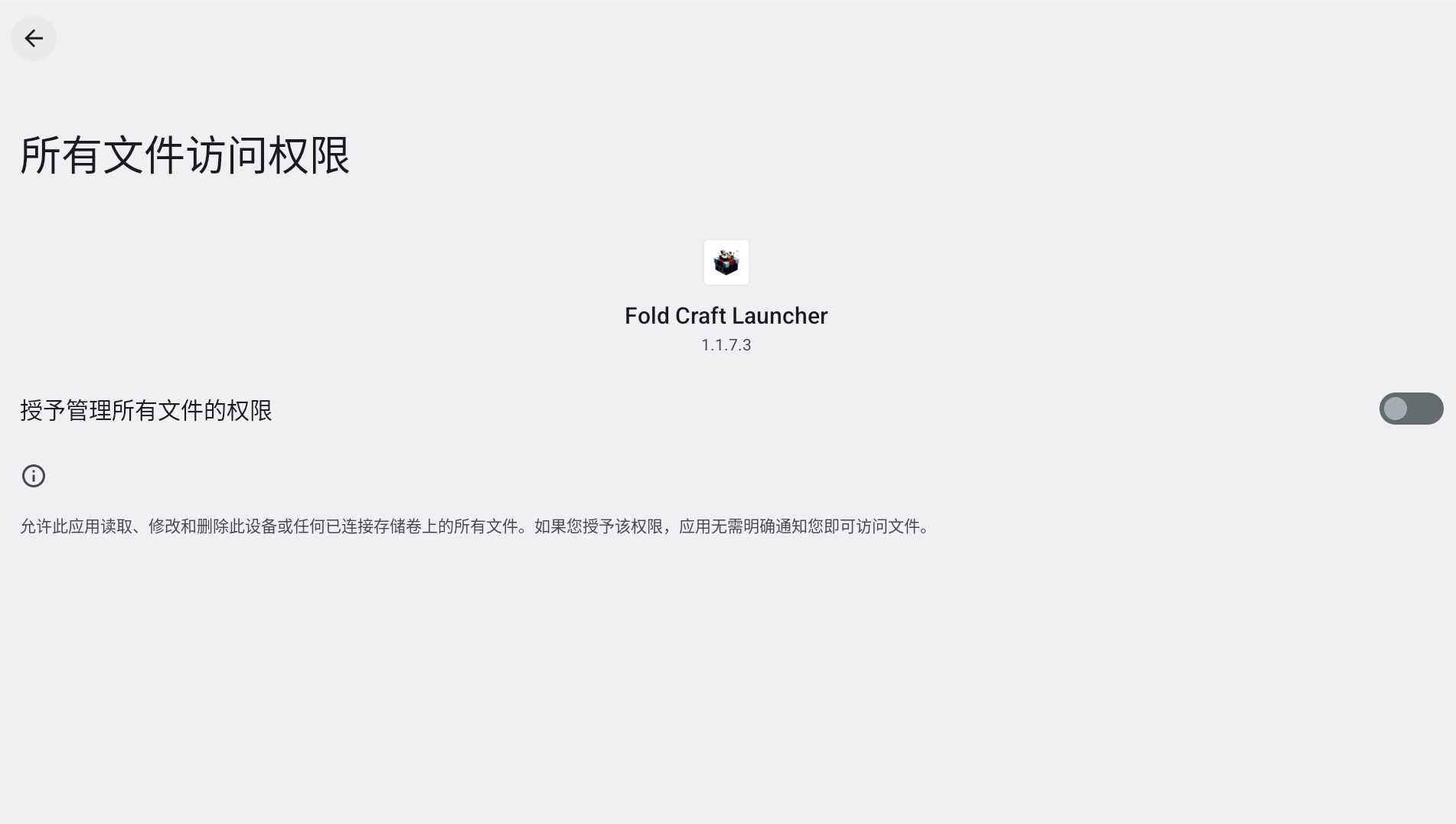
When you first open the launcher, if prompted for permissions, please click Allow or equivalent.
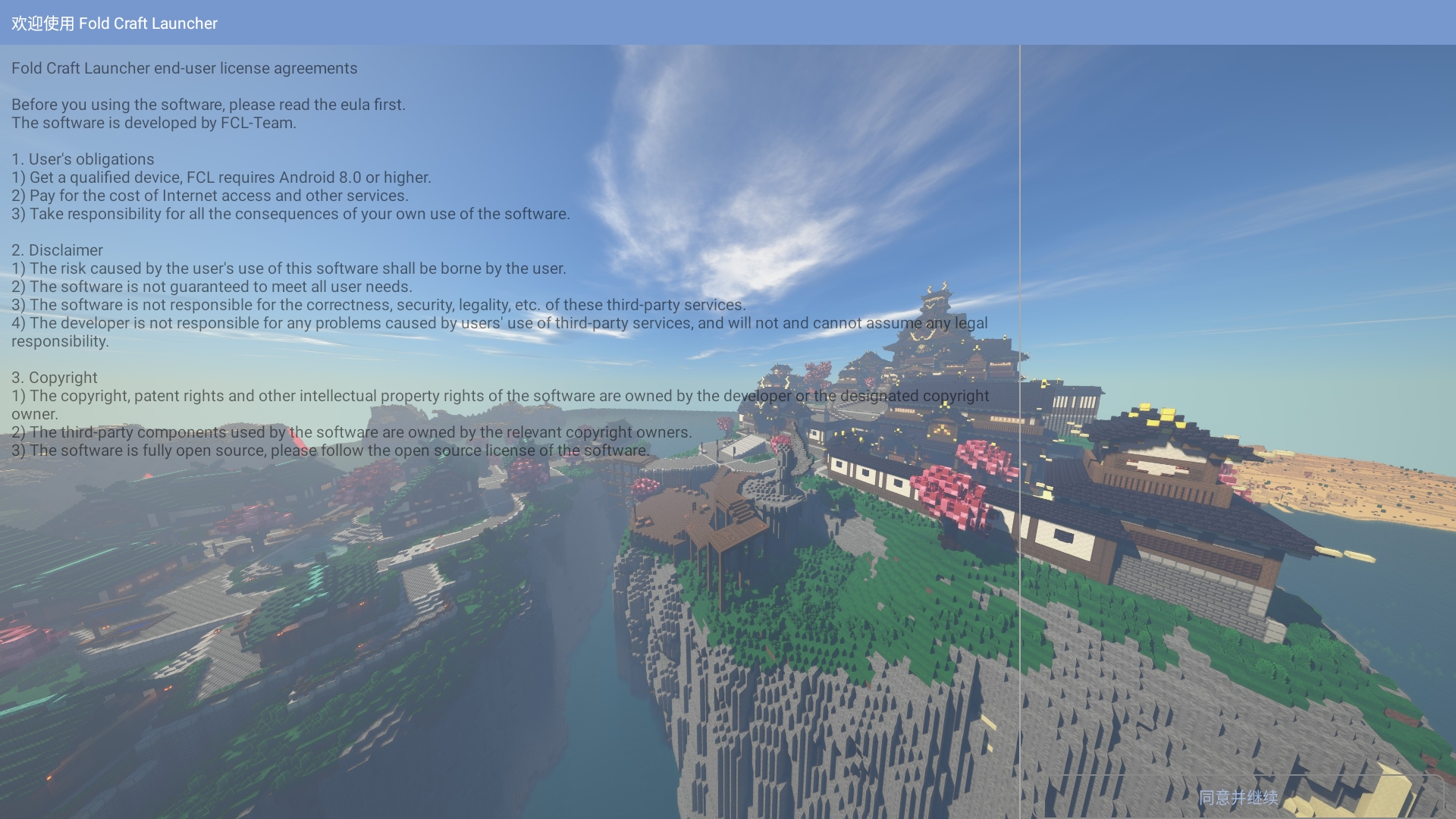
Follow the on-screen prompts and tap Agree and Continue in the bottom-right corner. (Please refer to the actual screen.)
Tap Install/Update in the bottom-right corner. FCL Launcher will now automatically download and install the required environment. (Please refer to the actual screen.)
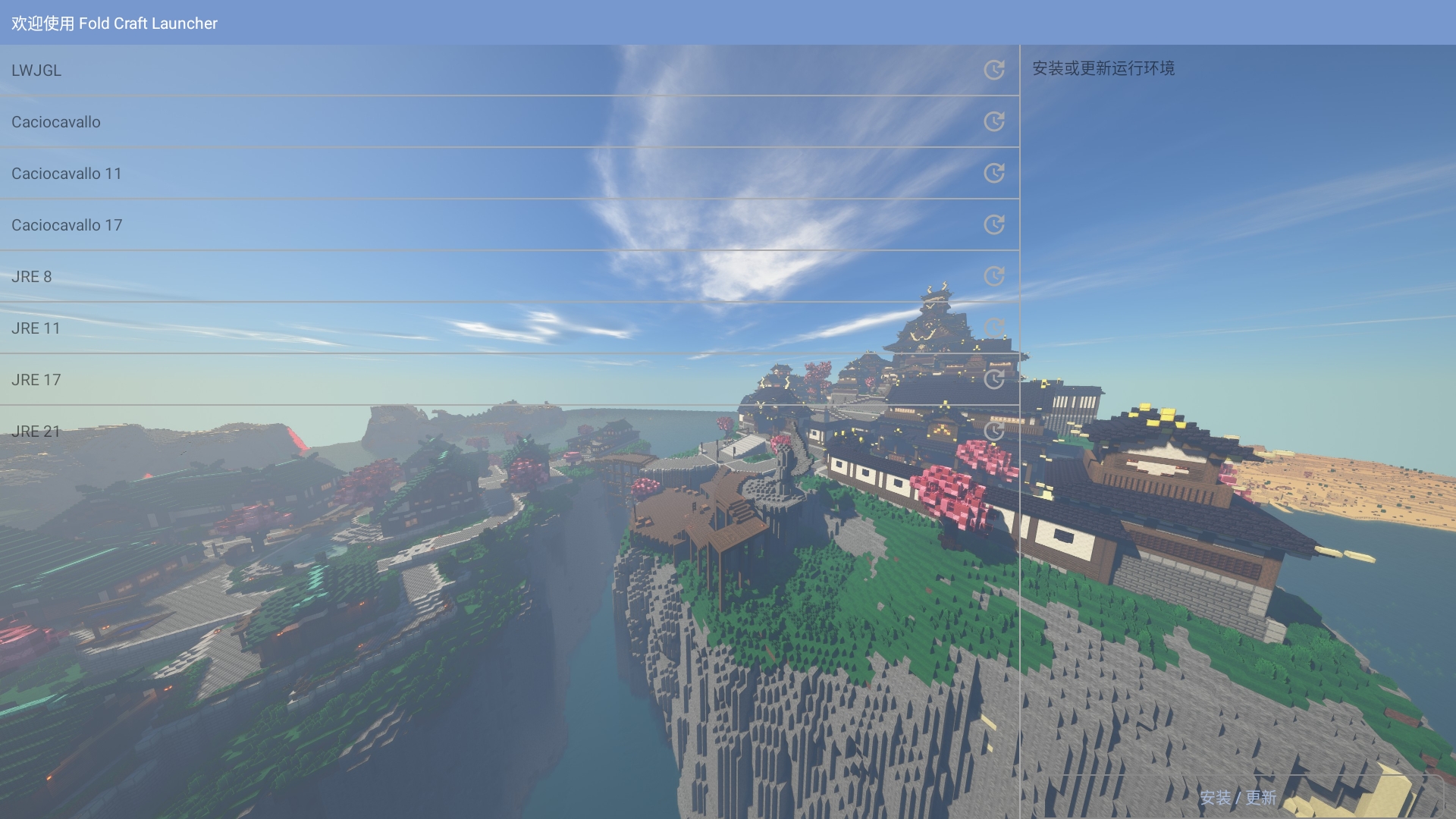
When you first enter FCL Launcher, you'll see an interface like this.
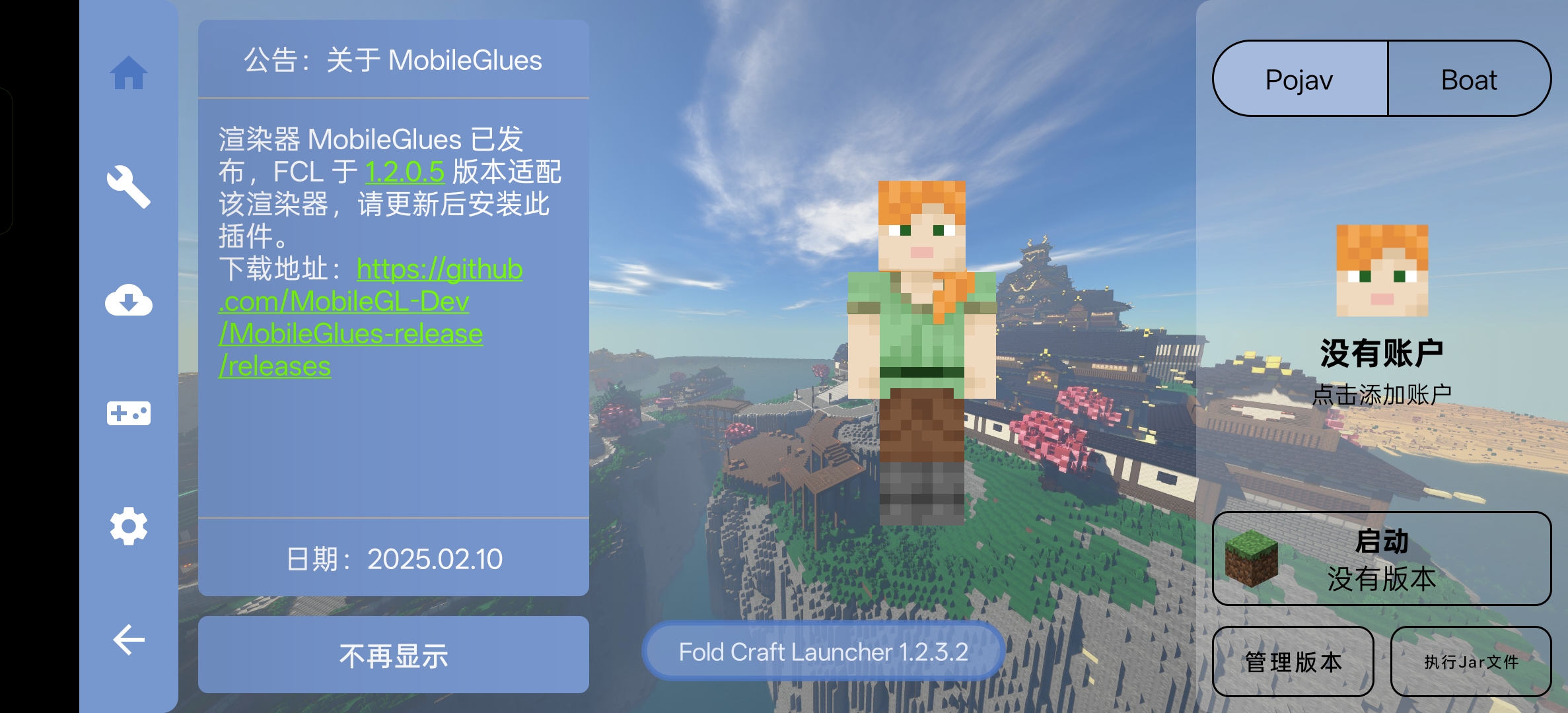
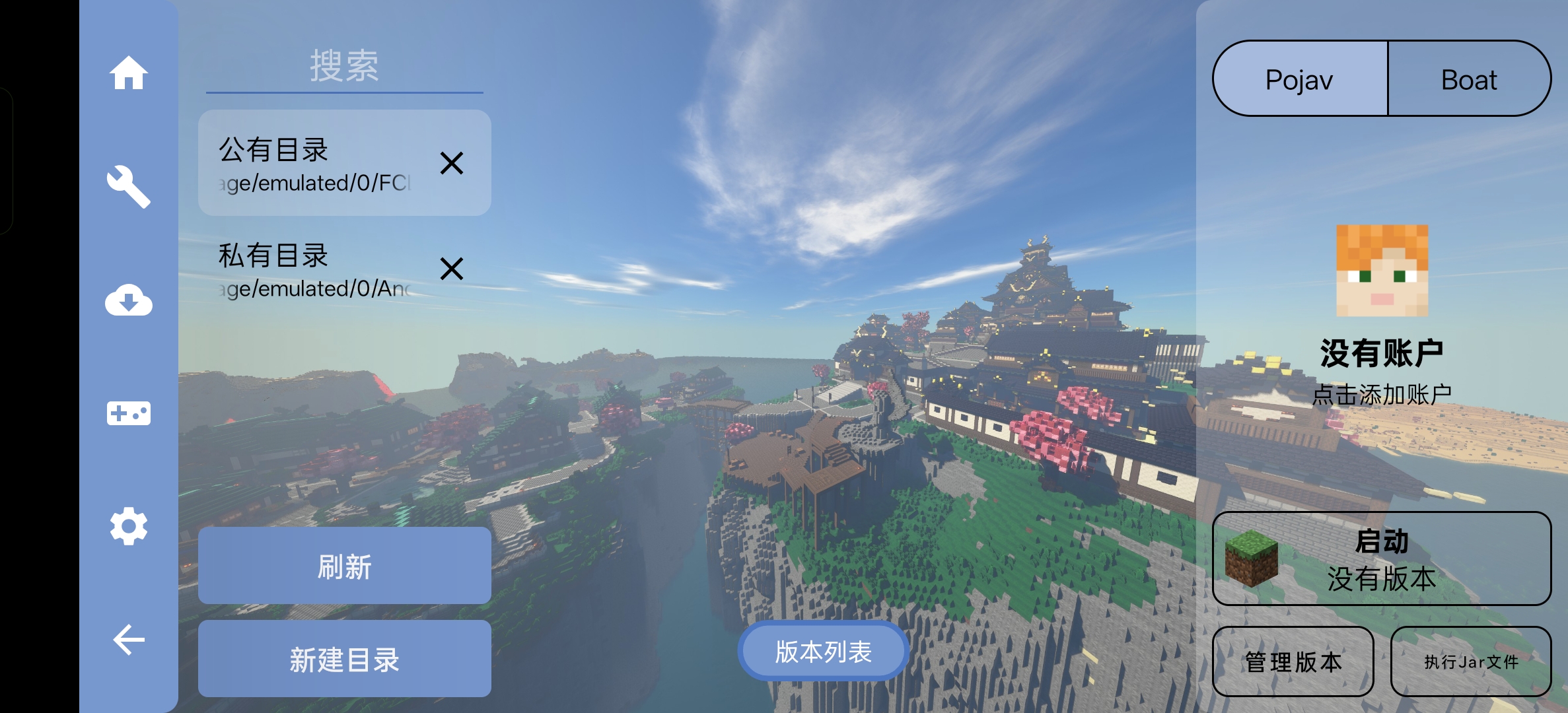
First, tap Manage Versions in the bottom-right corner and make sure the public directory is selected on the left.
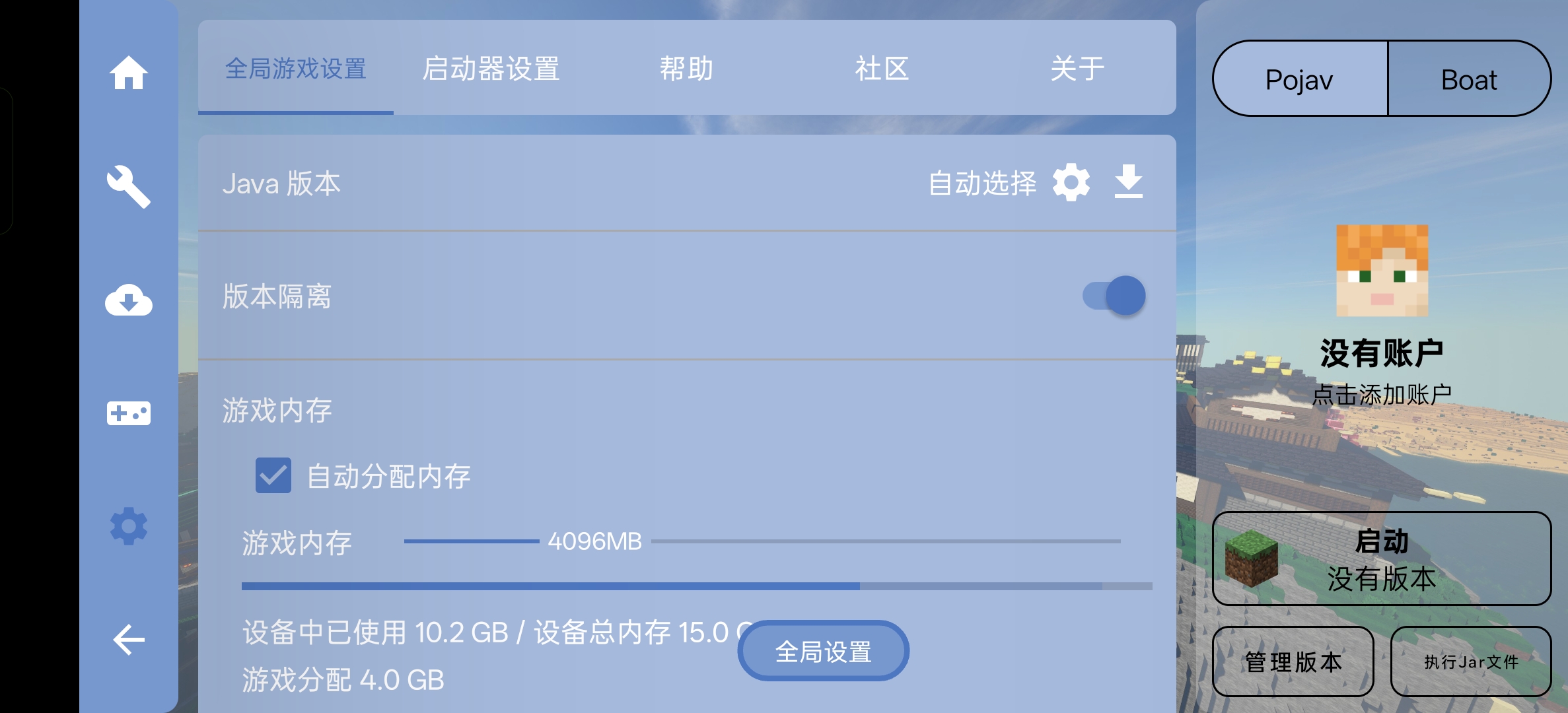
Then tap the settings icon on the right and make sure Version Isolation is enabled.
Next, follow the steps shown in the images.
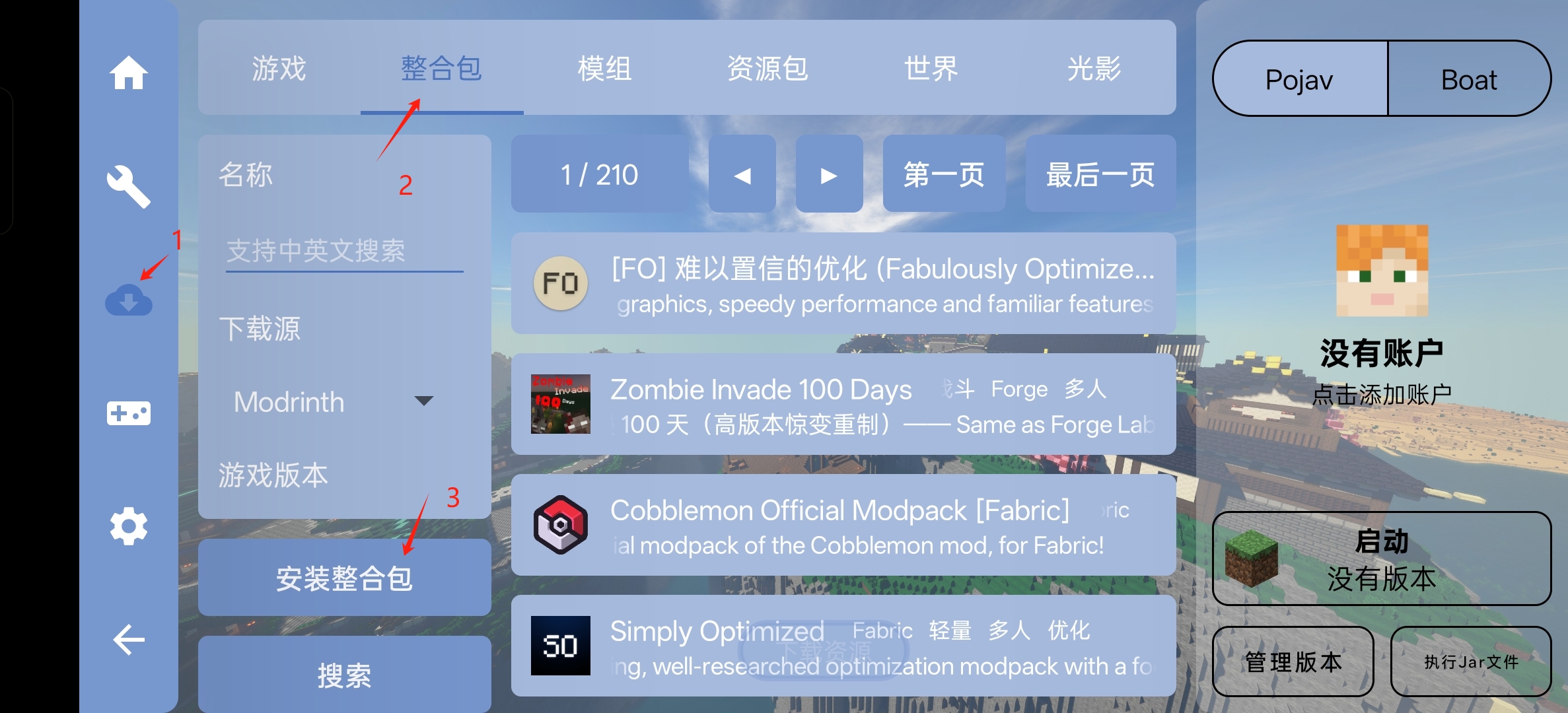
Then, tap Download Modpack from Internet.
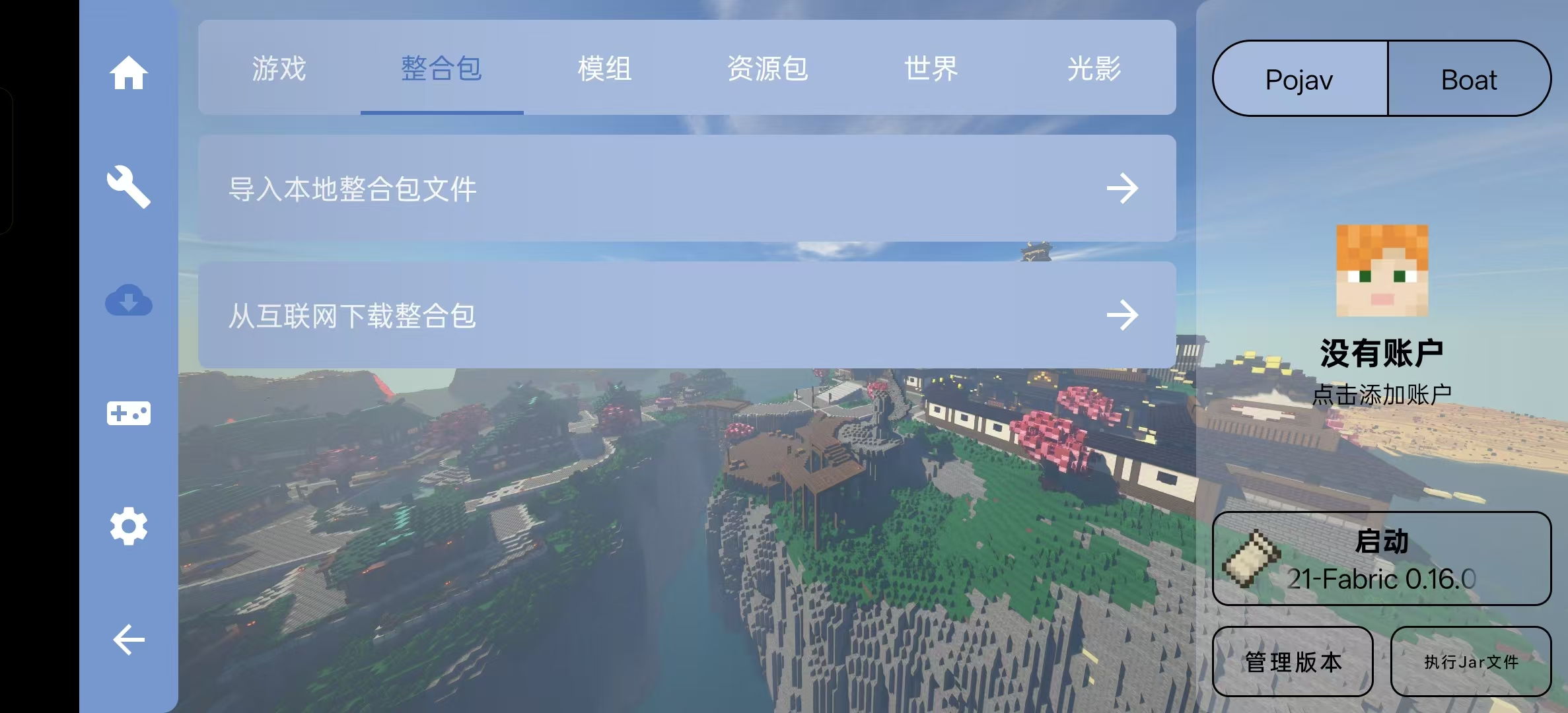
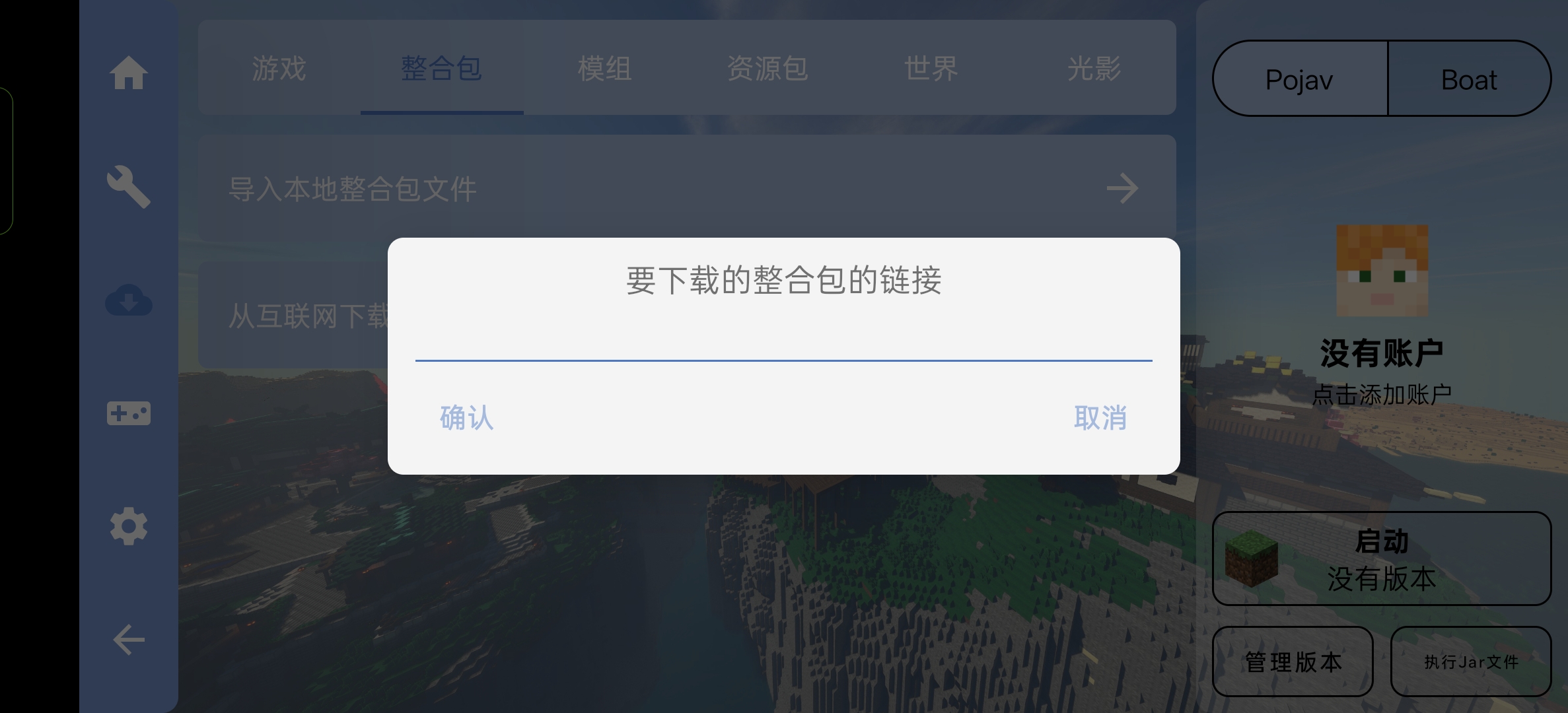
In the popup window, enter https://download.minebian.cn/packs/1.21-Fabric%200.18.4-ServerPacks-Original.zip, then tap OK.
This is why I didn't provide a download link above — the launcher will automatically download and install it for you.
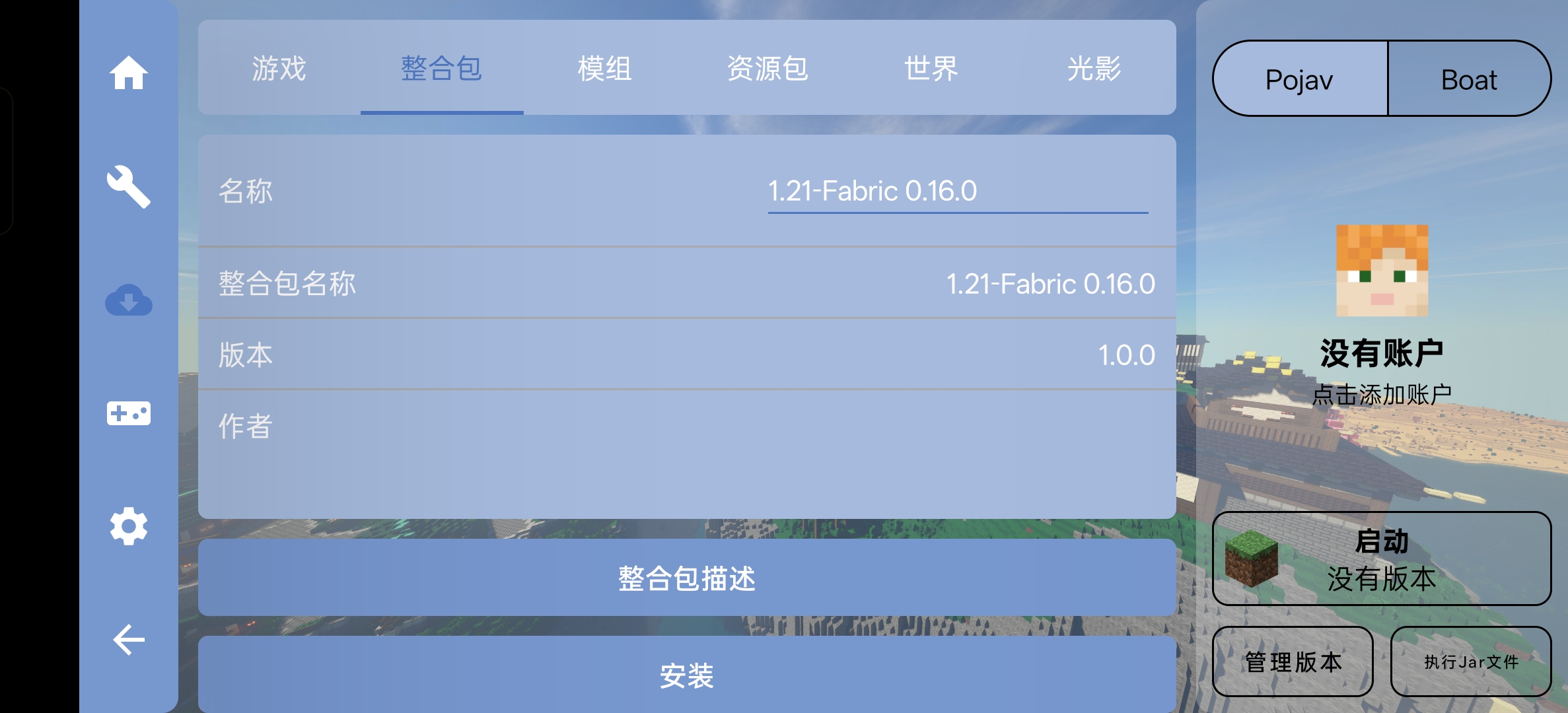
Once you see this page, tap Install and wait for the launcher to finish downloading and installing all required files. Then you can log in and start playing.
You can tap the avatar icon on the right to add an account. If you don't have a premium account, you should follow the External Login Setup tutorial to configure external login.
Next, there's one extremely important thing: installing MobileGlues
Install MobileGlues (Android Users Only)
Since Sodium is no longer compatible with the default Holy renderer, MobileGlues is now recommended for better performance and compatibility.
However, if for some reason you still want to use the Holy renderer, you might have to use my modified version of Sodium instead :(
MobileGlues can be downloaded from the official GitHub Releases page — click here to go there.
After opening the link, you'll see a page like the one shown below (please refer to the actual page).
If you can't open the page or download files, try switching networks or using a VPN/accelerator.
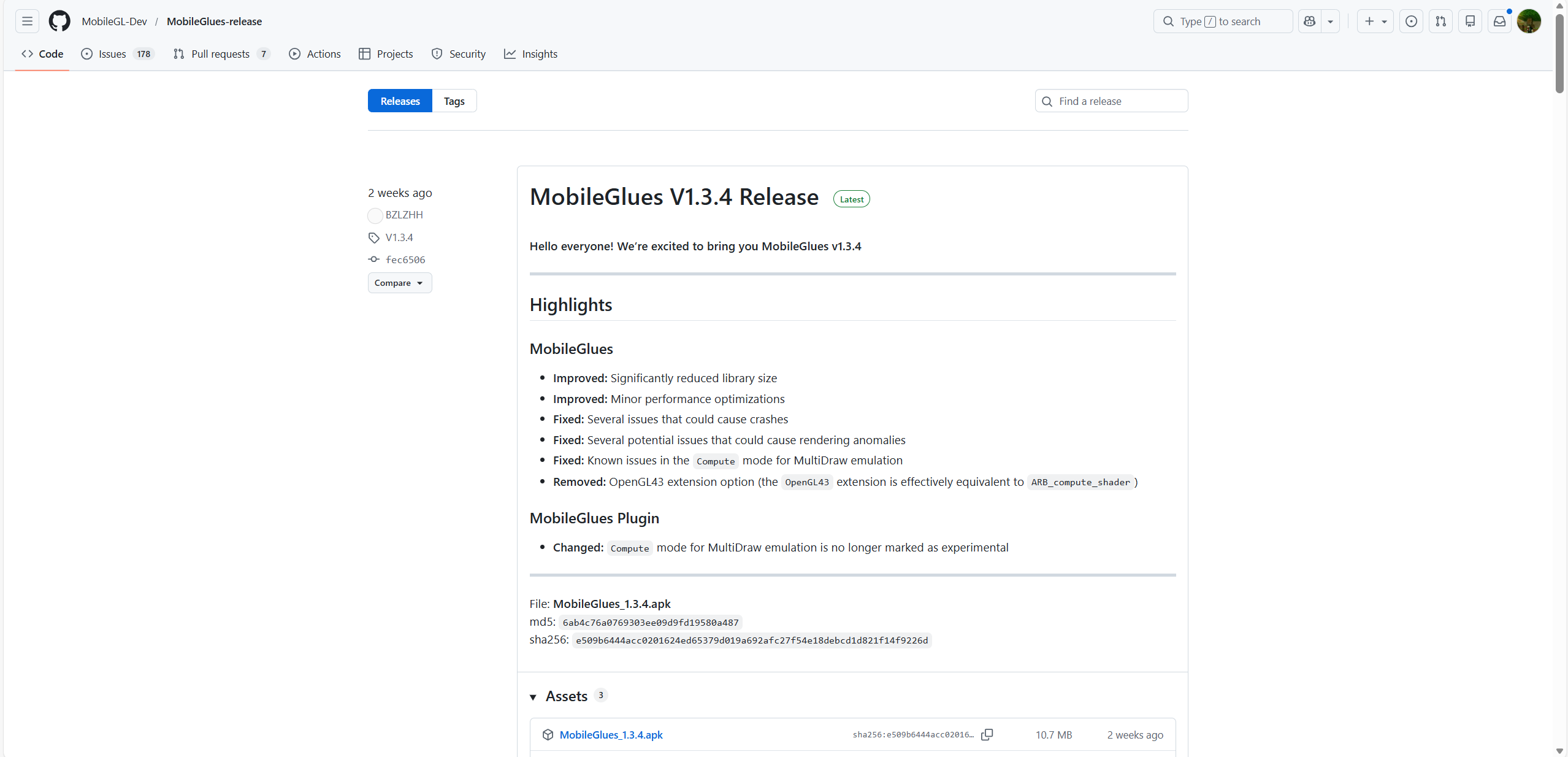
As shown, the version marked with a green Latest badge is the latest version. Click the files under Assets to download.
Note: Download the file with the APK extension.
After installation, simply open the newly installed app once — no changes or button presses needed. Then go back to FCL settings, open Settings → Global Game Settings → Renderer, tap the settings button on the right, and change the renderer to MobileGlues.
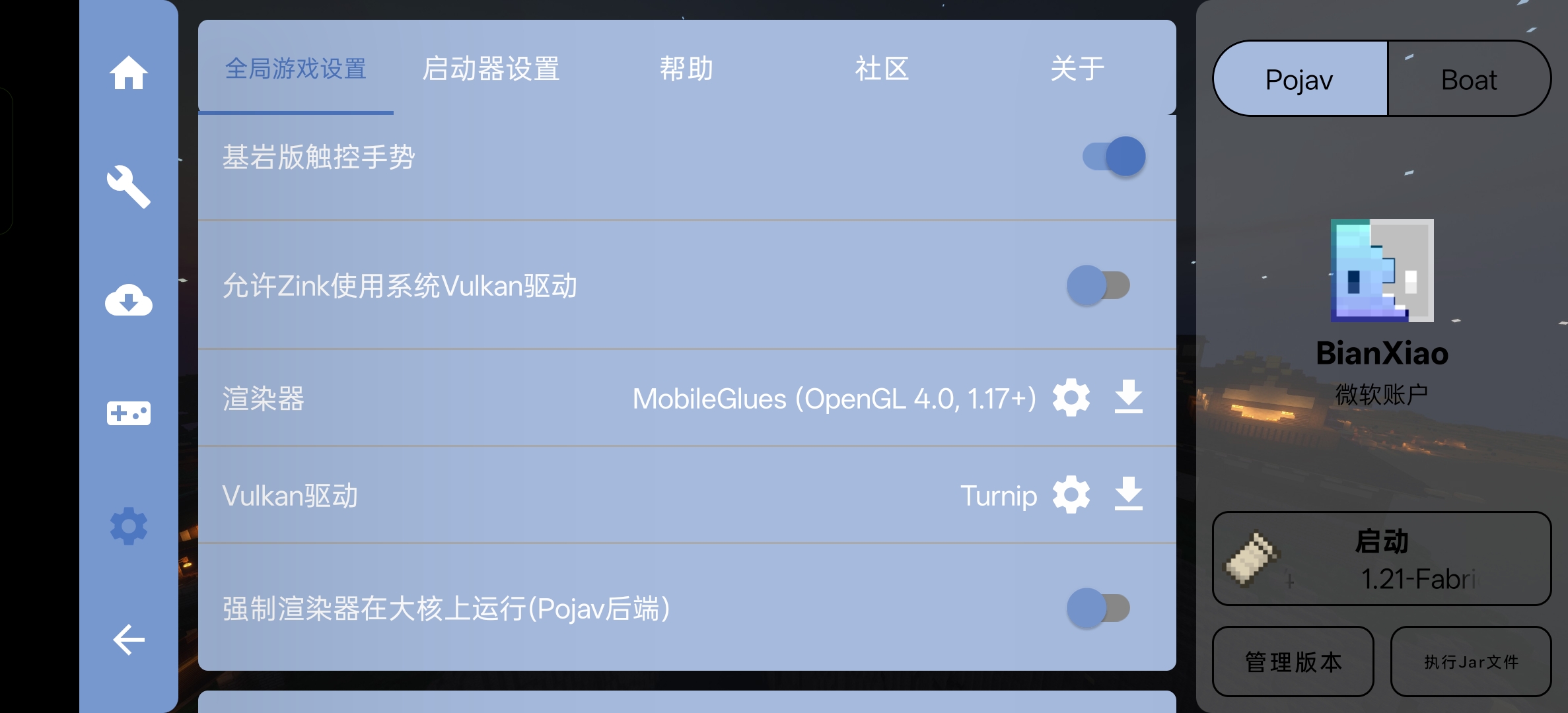
Can't find MobileGlues in the renderer list? Try scrolling up — you might just spot it!